MYWTC - SETTING UP AUTO PAY
myWTC - Setting up Auto Pay
Last Updated: October 23, 2026
Setting Up Auto Pay?
Once you've logged into your myWTC portal, you can easily set up autopay! Follow along below to learn how. As always, if you have any questions, call or text 785-456-1000, or email support@wtcks.com.
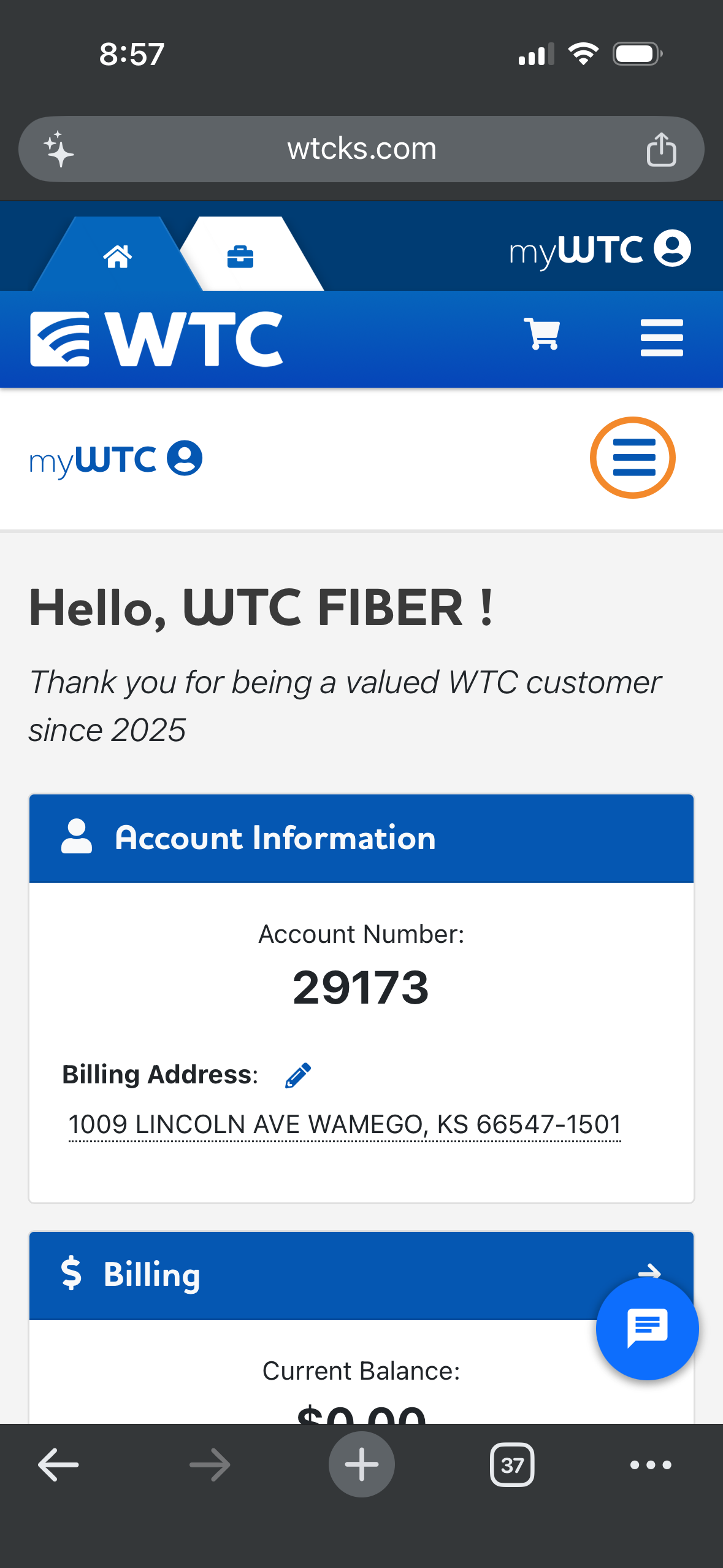
Step 1: Click the three blue lines at the top of the home page.
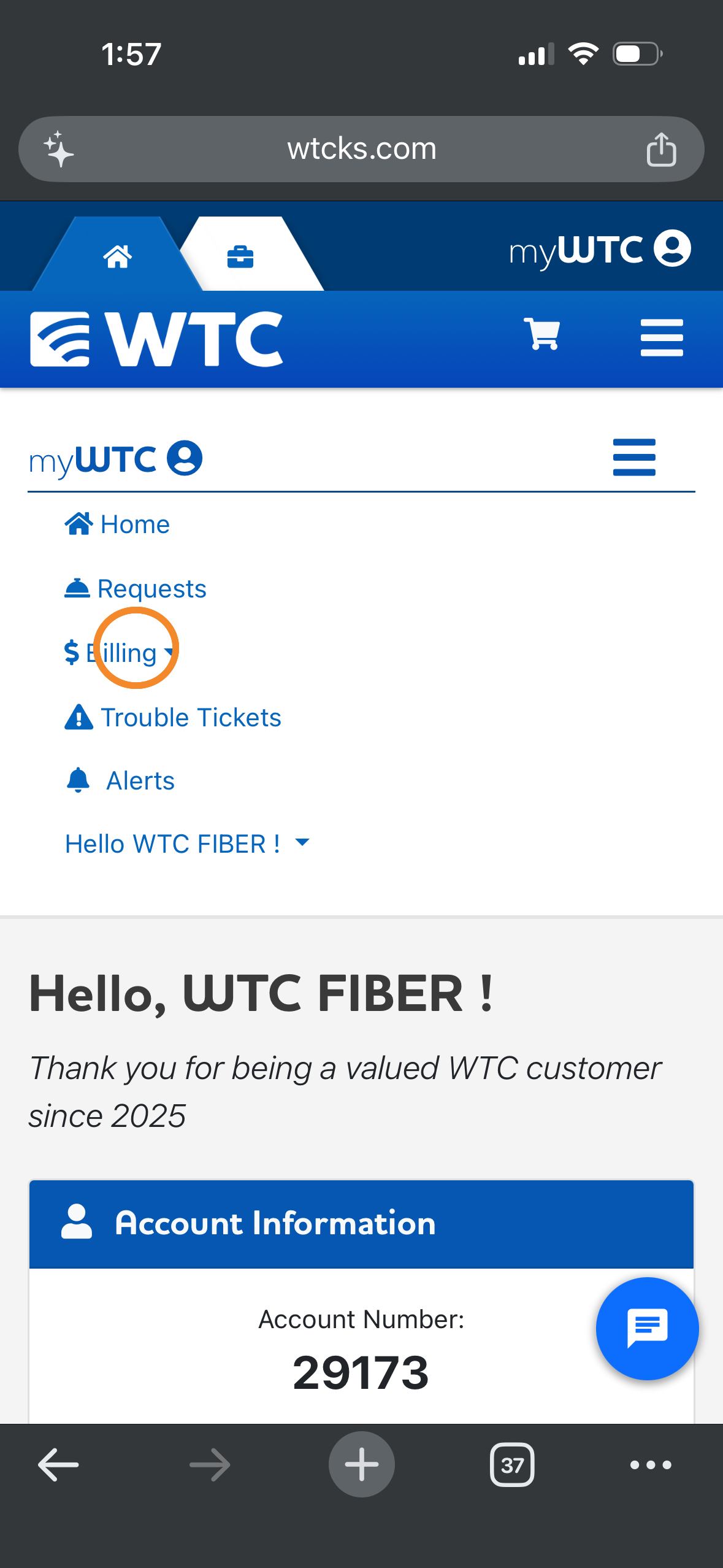
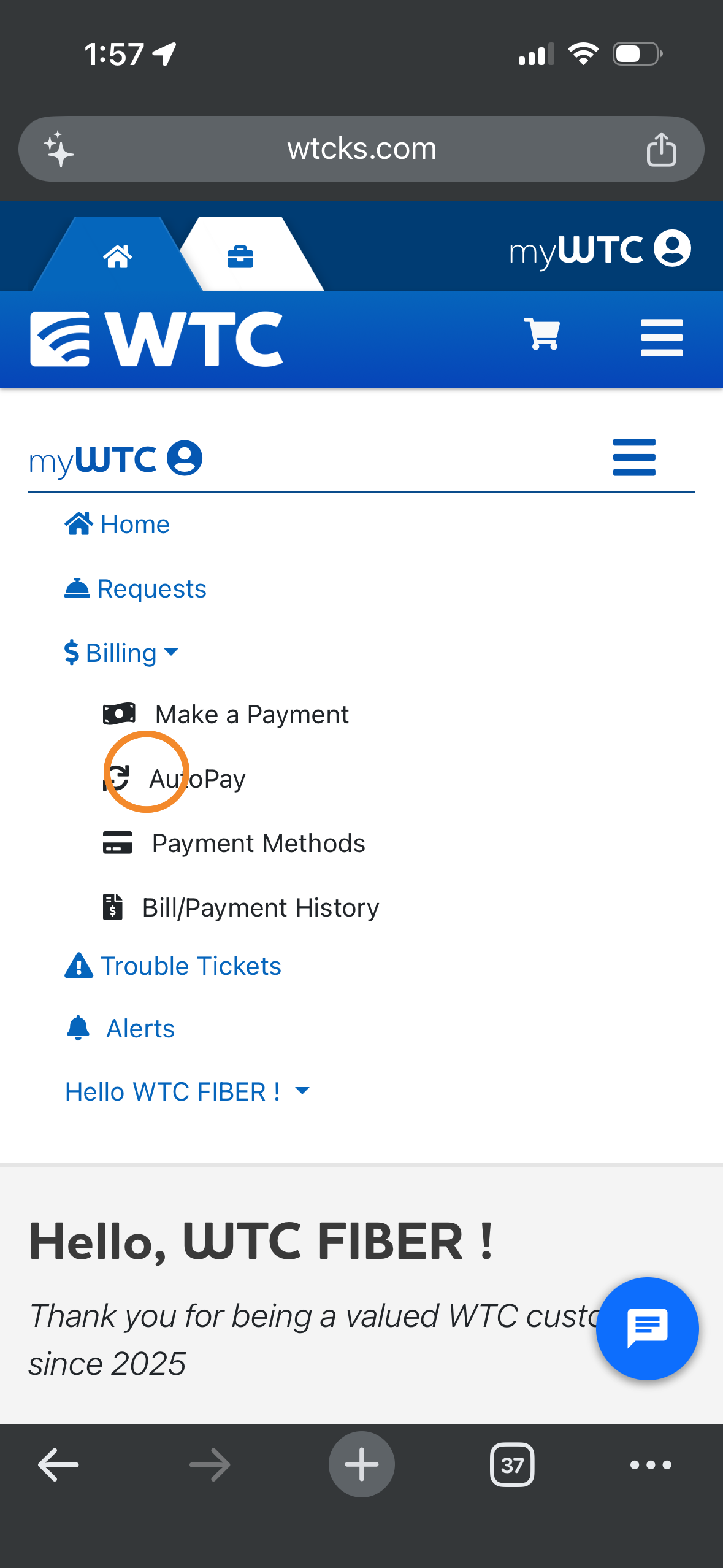
Step 2: Click billing, then AutoPay.
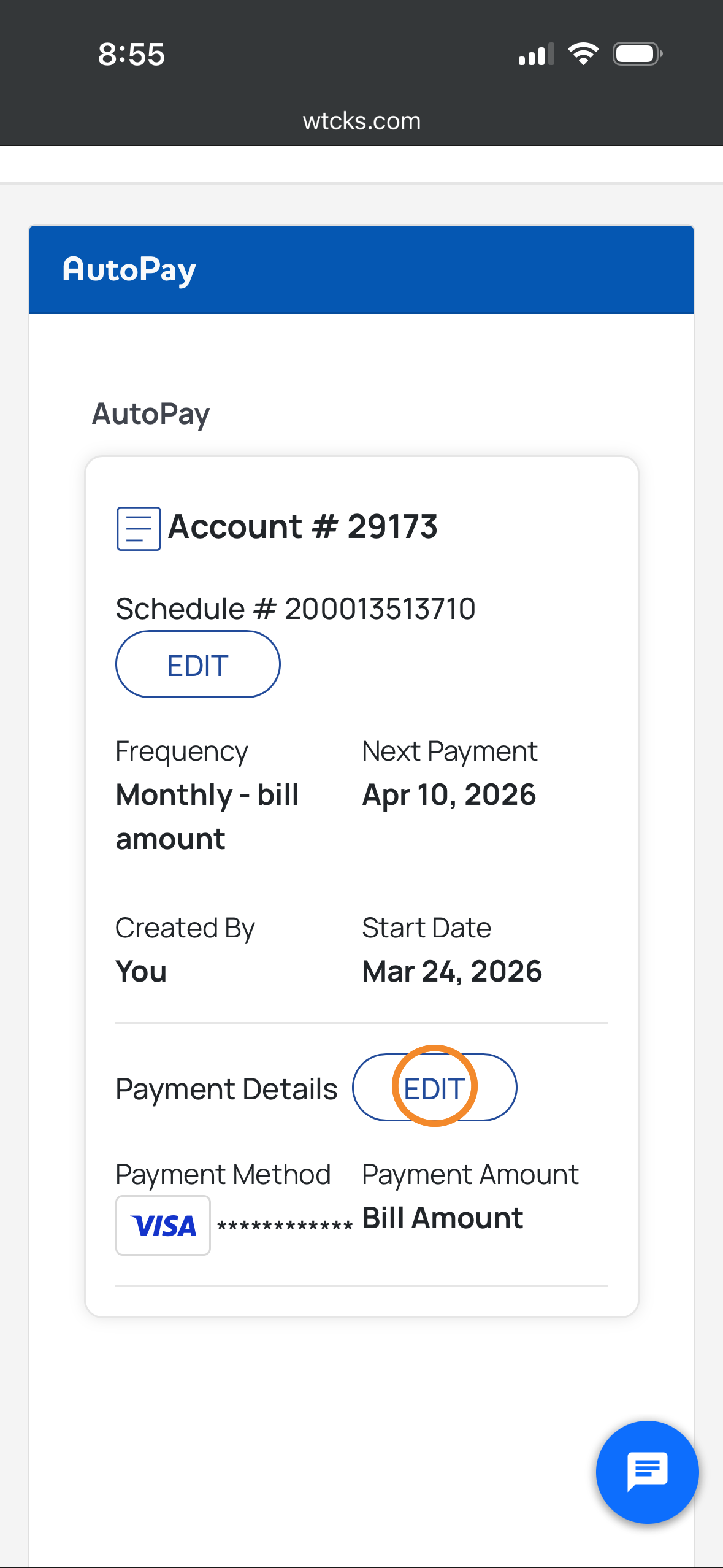
Step 3: To add a card, click edit beside Payment Details.
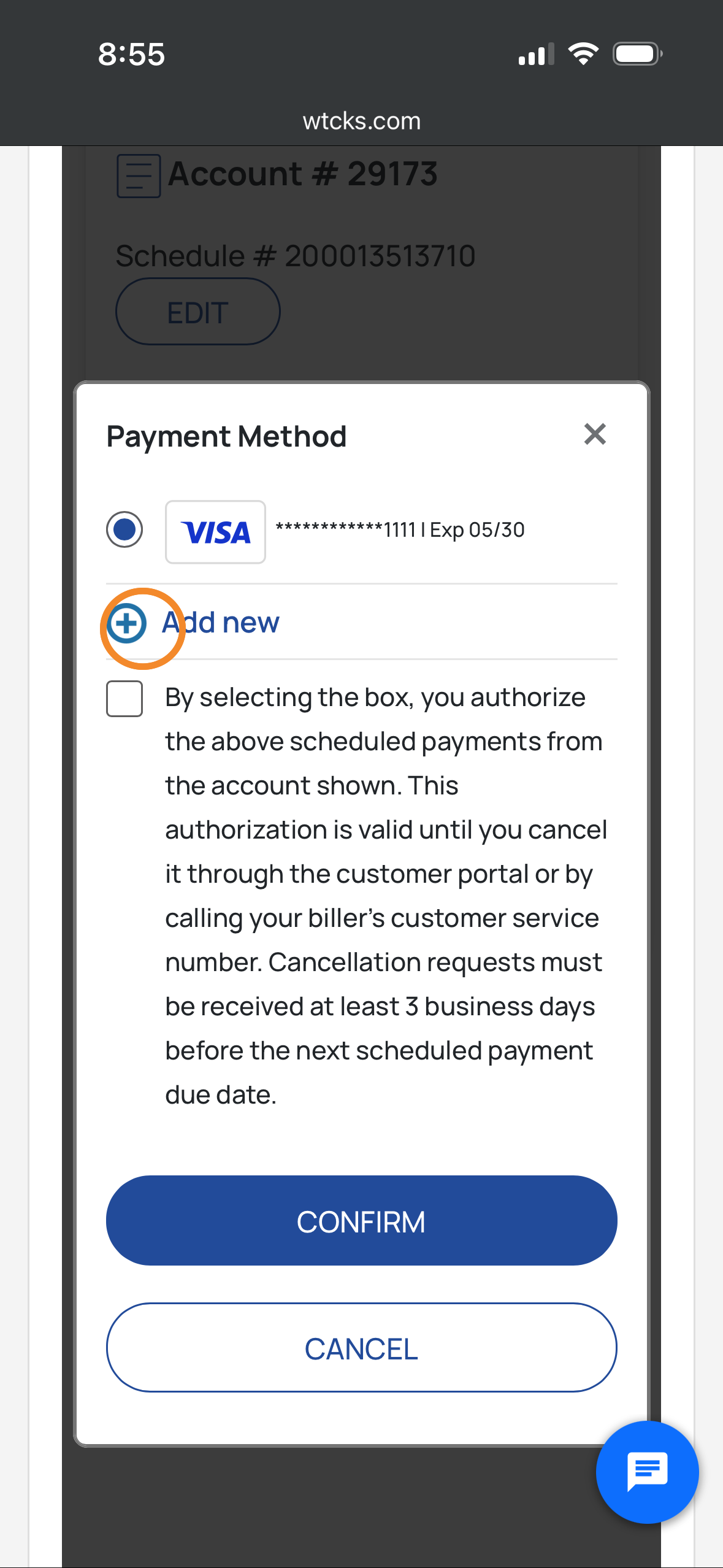
Then click add new.
Then click add new.
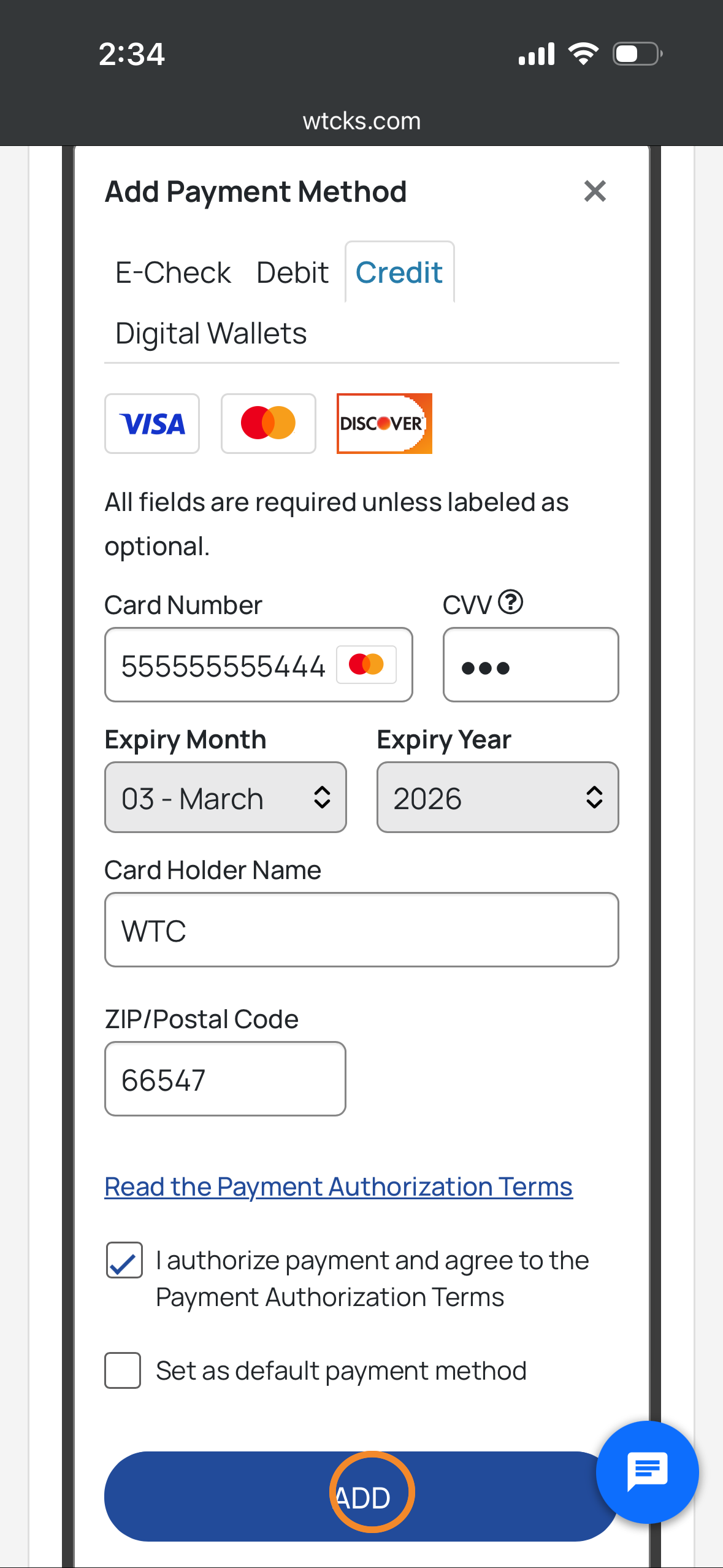
Step 4: Type in your card information and click Add.
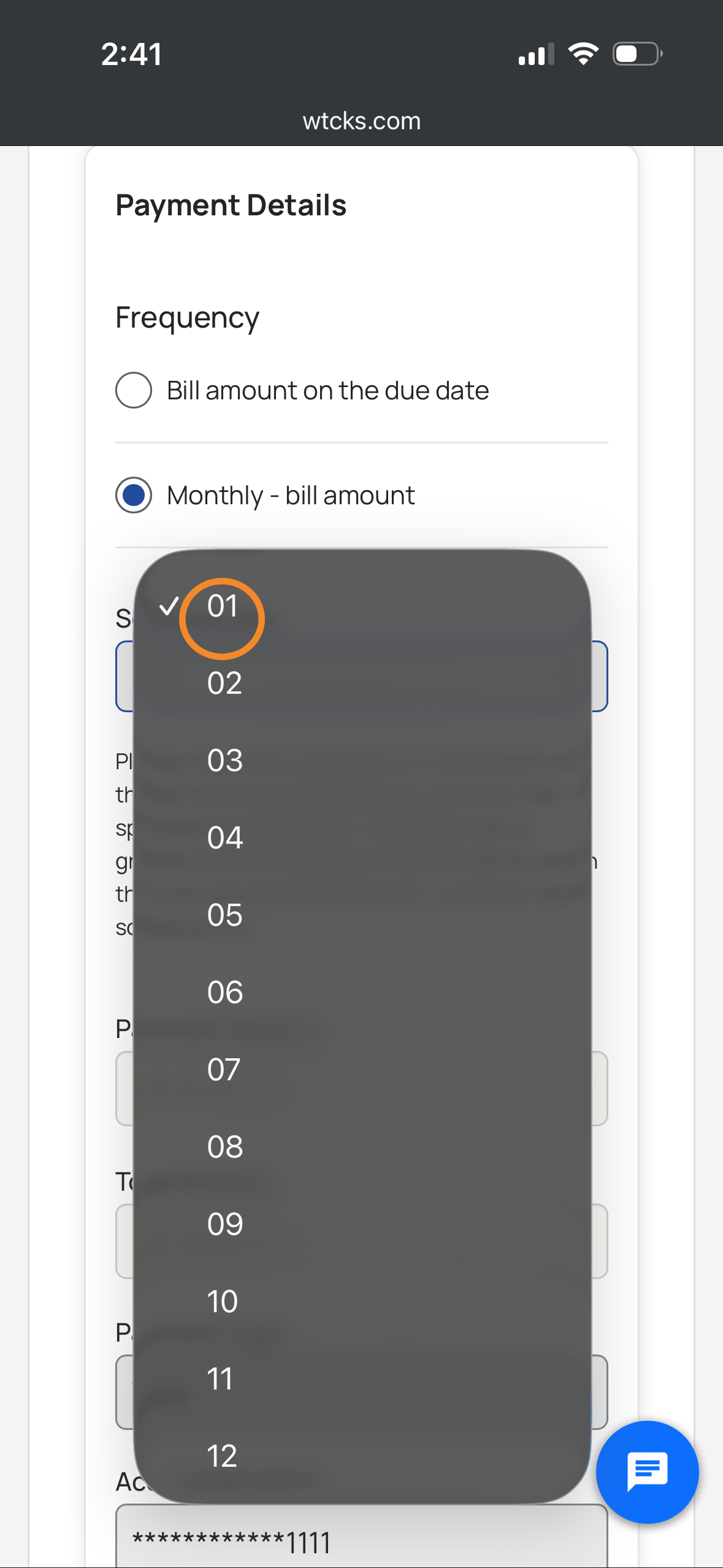
Select the frequency and amount. You can use a checking account, debit card or a credit card.
Select the frequency and amount. You can use a checking account, debit card or a credit card.
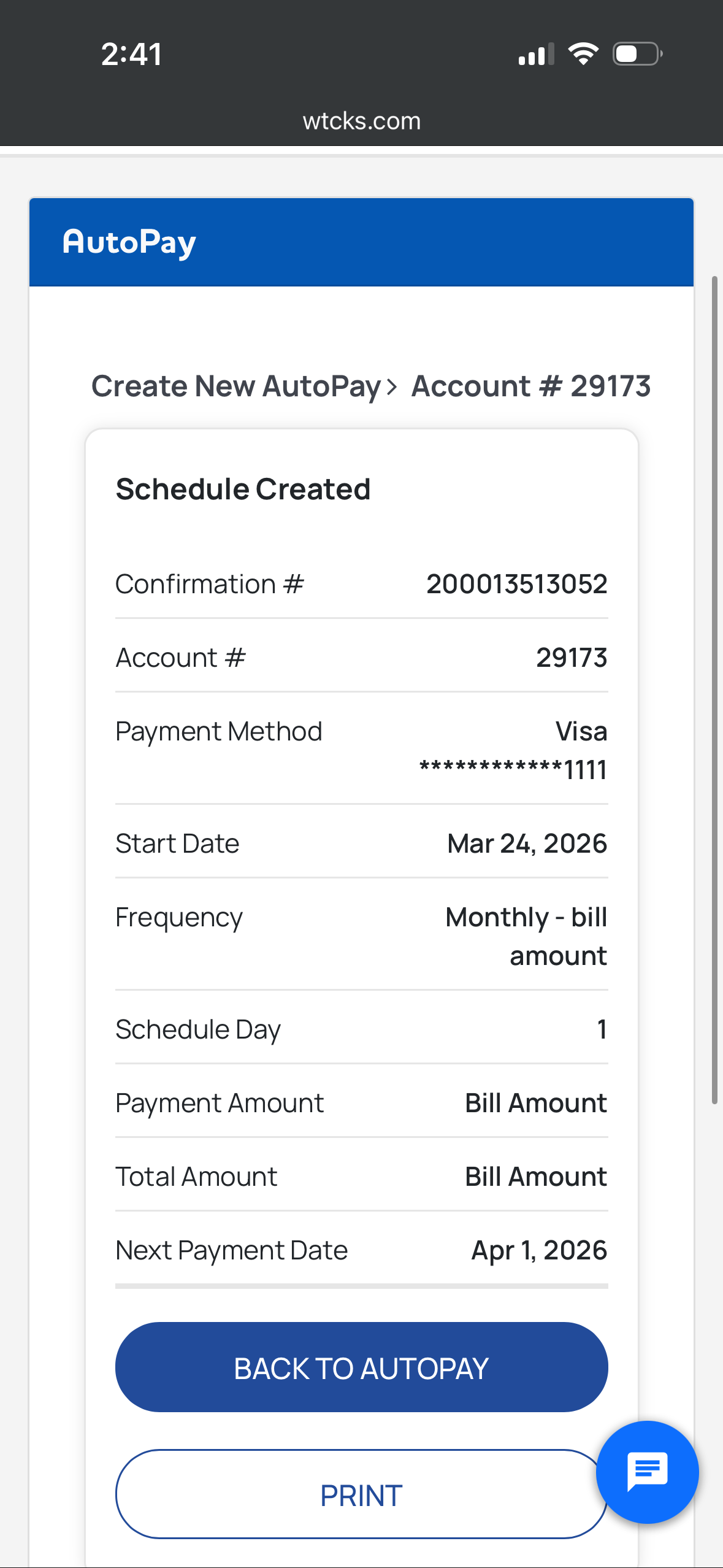
Step 5: Once your setup is complete, you'll see a confirmation page.
ℹ️ Below is what a web version will look like.
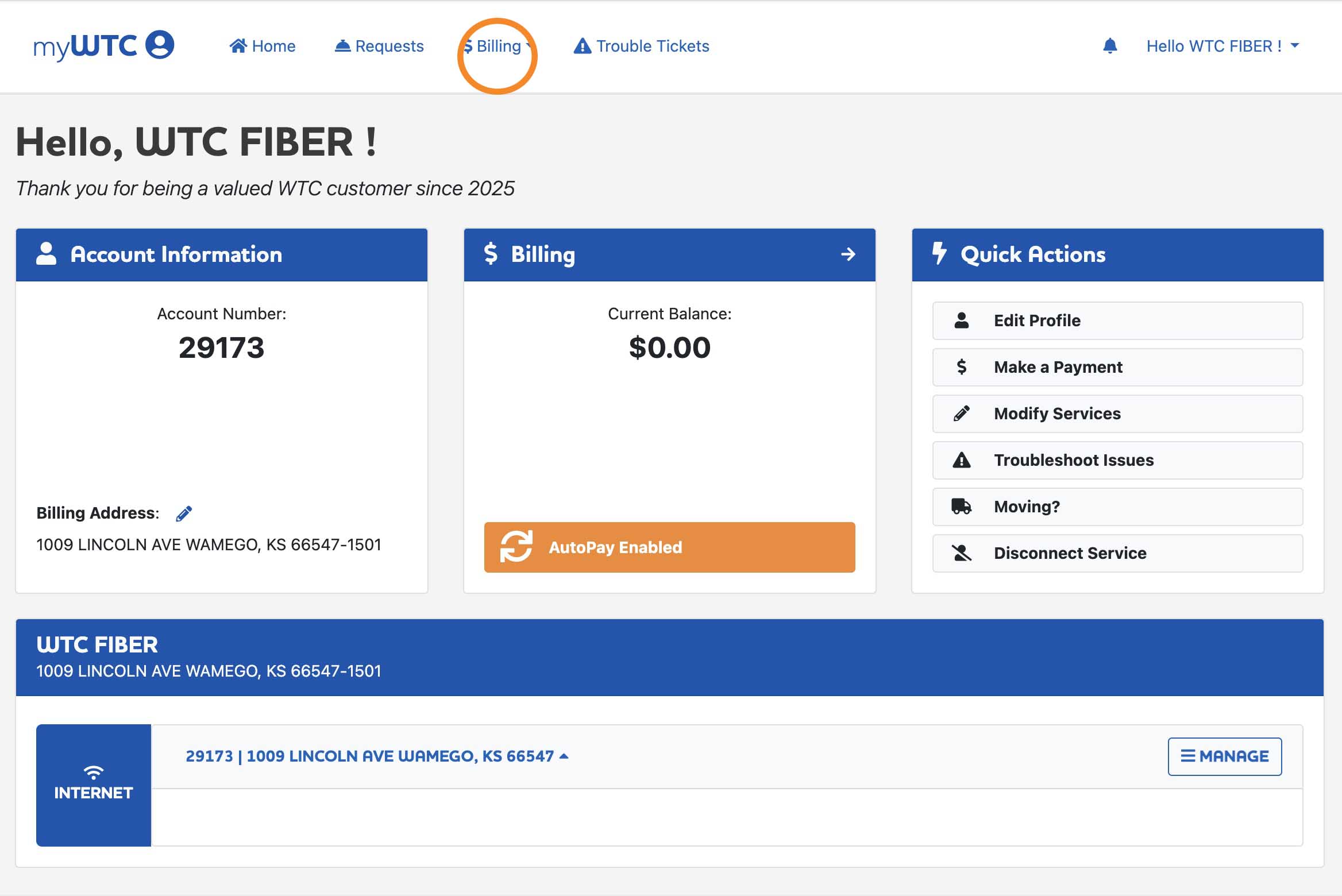
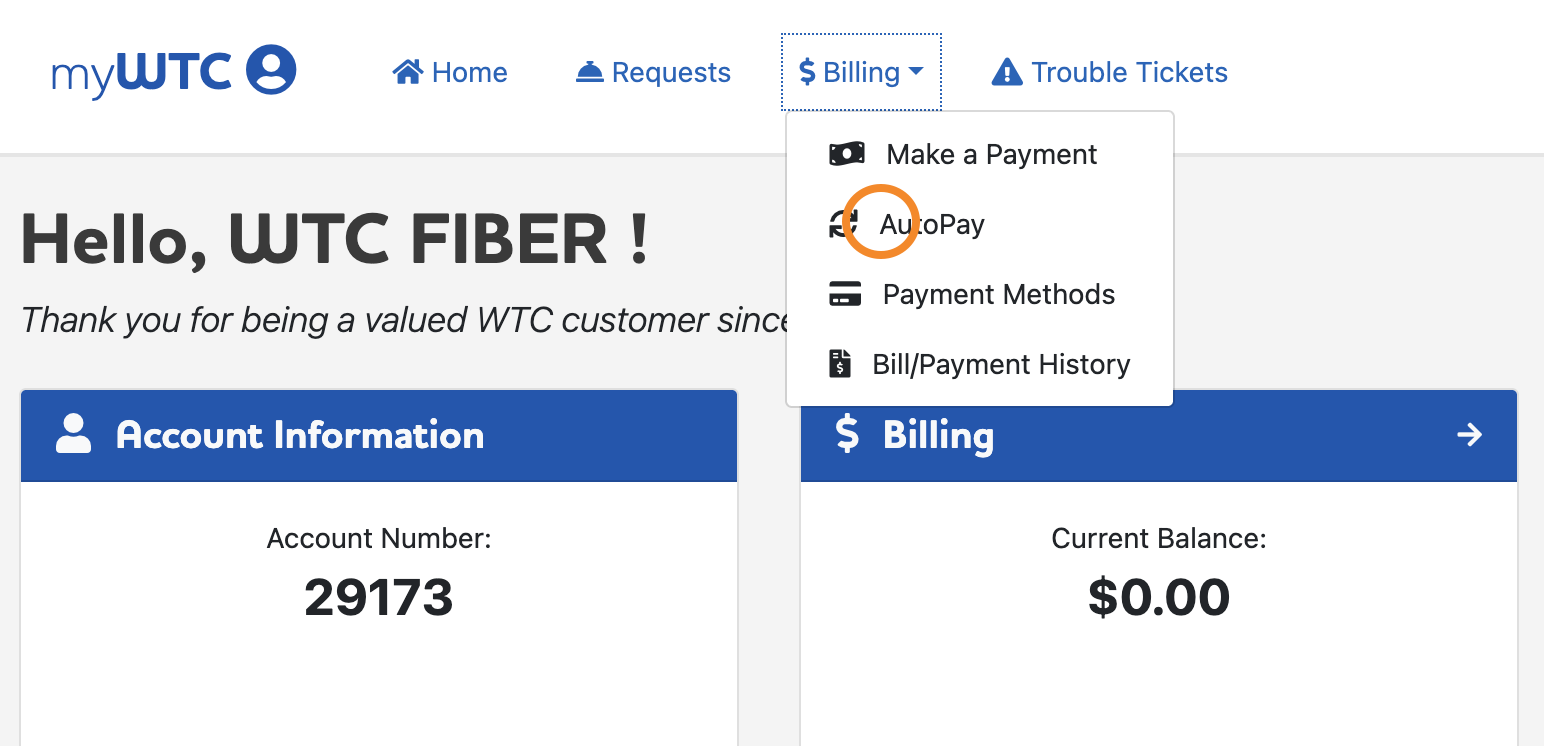
Step 1: Click Billing at the top of your screen.Then click AutoPay.
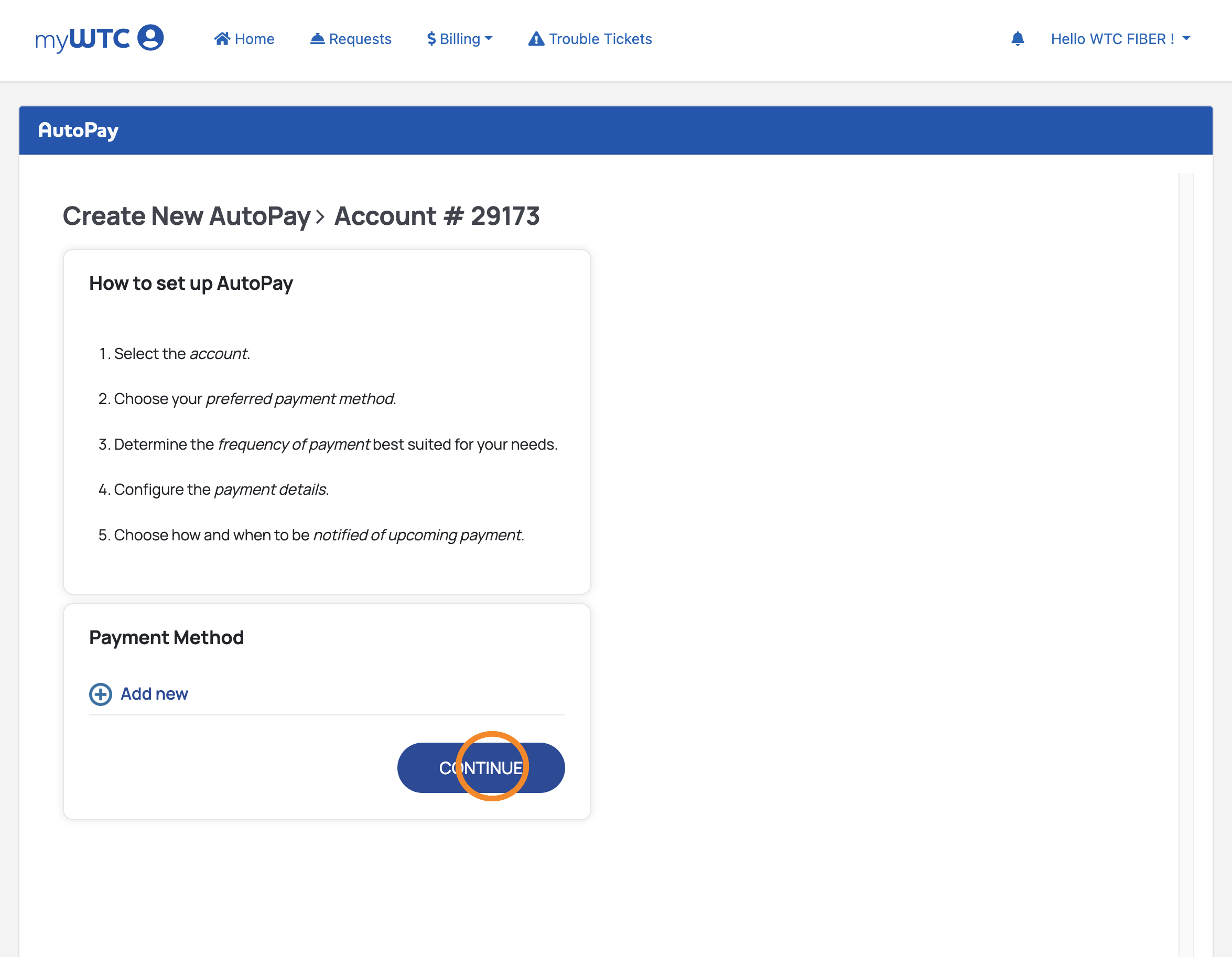
Step 2: To add a new card, click Add new and then click Continue. Enter your card information and then click Add.